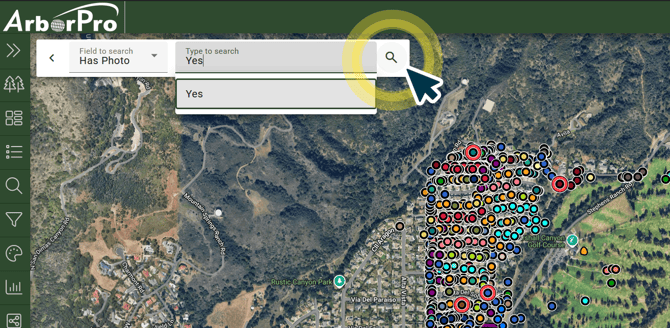
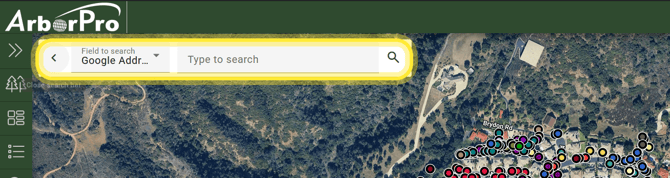
Use the Search Bar in the upper-left corner of your Map View to quickly find field information from your currently selected active layer.
Step 1.) Click “Field to Search”
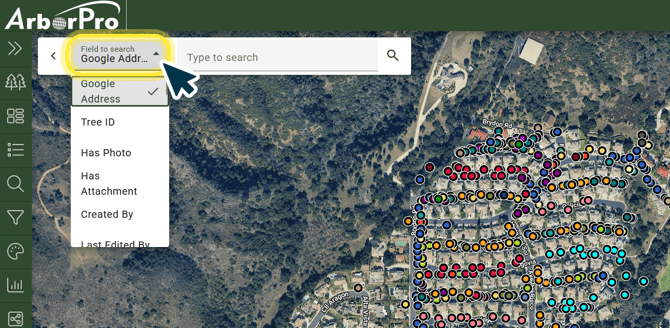
Your field is set "Google Address” as the default field. You can change this by clicking the “Field to Search” text on the Search Bar to access a drop-down menu. Scroll to view all of your options.
Your field is set "Google Address” as the default field. You can change this by clicking the “Field to Search” text on the Search Bar to access a drop-down menu. Scroll to view all of your options.
Step 2.) Click “Type to Search” and Choose the Field’s Condition
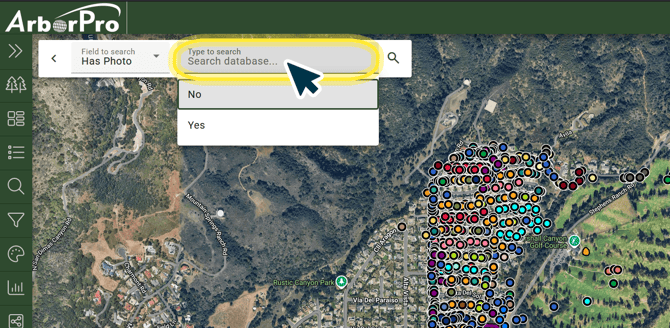
After selecting your field, use the search bar to set the field’s condition. You can type keywords or pick an option from the drop-down menu.
Step 3.) Click the Magnifying Glass Button to run your search.
Data Points meeting your Map Search criteria will automatically be selected on the Map View.