
The Object Selection Button, represented by the mouse-cursor icon and located in your Map Tools bar, offers flexibility through the following options for how you select your Data Points: Click Select, Legacy Polygon Select, Rectangular Select, Polygon Select, Radial Select, and Center-Line Select.
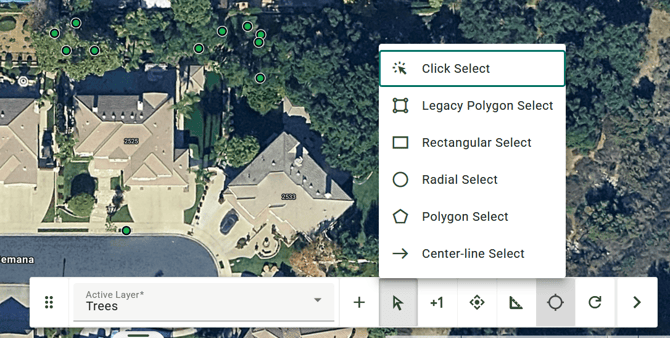
ArborPro Tip: Your Active Layer from the Map Tools Bar will indicate what Data Points are being interacted with.
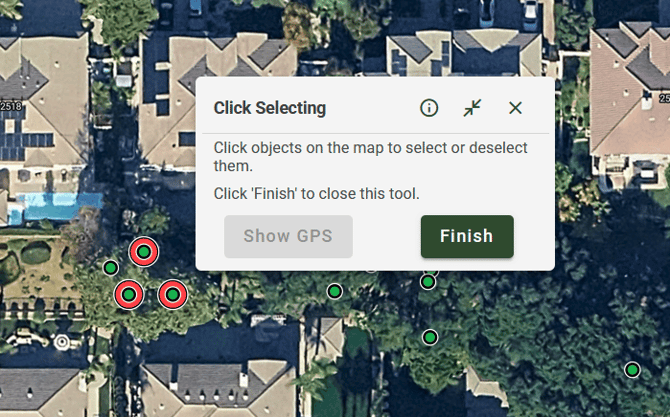
ArborPro Tip: Your selections will be highlighted in red and your Tree Dashboard count will update to reflect the number of points selected vs. the number of total Active Points within the software.

Click- Select
Allows you to select individual data points by clicking them
- Click on your Object Selection Button, represented by the mouse-cursor icon and located in your Map Tools bar
- Select the "Click-Select Option".
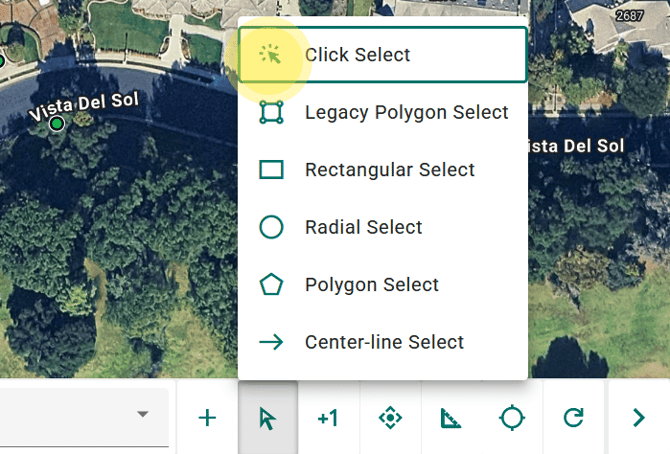
- Click on the data point within your Map View that you want to select.
- Continue clicking additional Data Points to add them to your selection.
- Click the green Finish button within your Click-Selecting Window to create your selection and exit the tool.

Legacy Polygon Select
Select Data Points within a specific area by creating a custom shape.
- Click on your Object Selection Button, represented by the mouse-cursor icon and located in your Map Tools bar.
- Select the "Legacy Polygon Select".
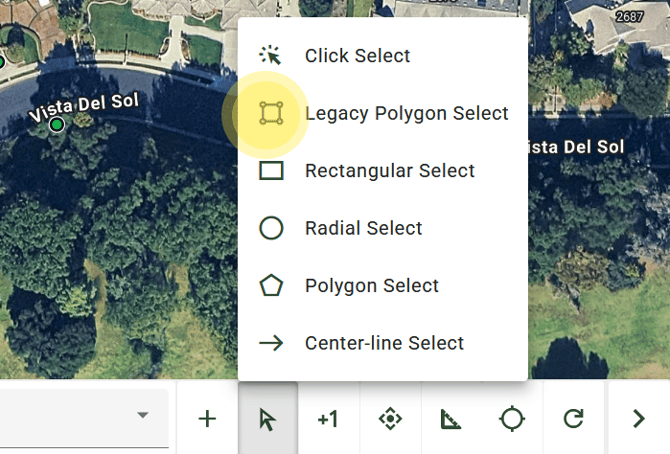
- Position your crosshair and click the Accept button to place your Polygon.
- Click and drag your red Polygon Select shape over the Data Points you wish to capture. Adjust the polygon boundaries as needed by clicking and pulling the white dots on your shape.
- Click the Finish Shape button within your Polygon Select Window to create your selection and exit the tool.
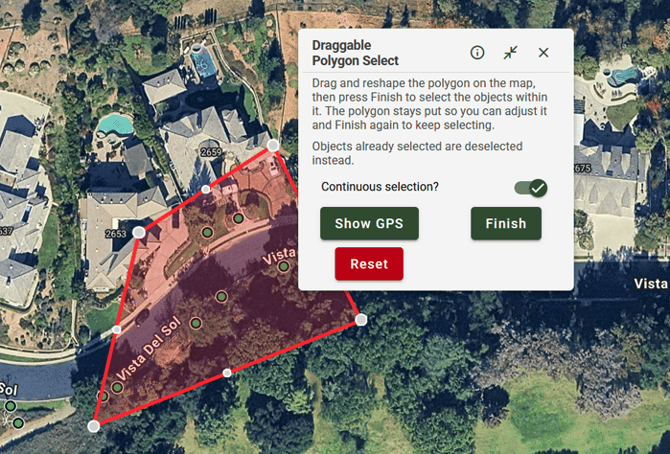
ArborPro Tip: Continuous Selection will automatically be toggled on in your Polygon Select window
Arborist Tip: You can also use the Polygon Selection Tool to deselect by overlaying a new polygon over your selected points.

Polygon Select
Select Data Points within a specific area by drawing a custom shape.
- Click on your Object Selection Button, represented by the mouse-cursor icon and located in your Map Tools bar.
- Select the "Polygon Select".
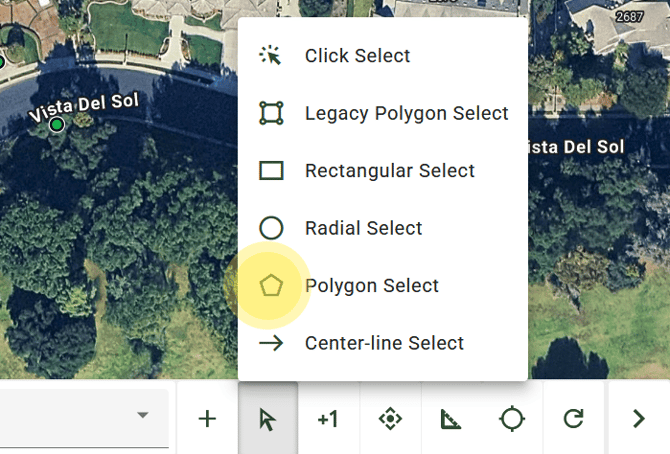
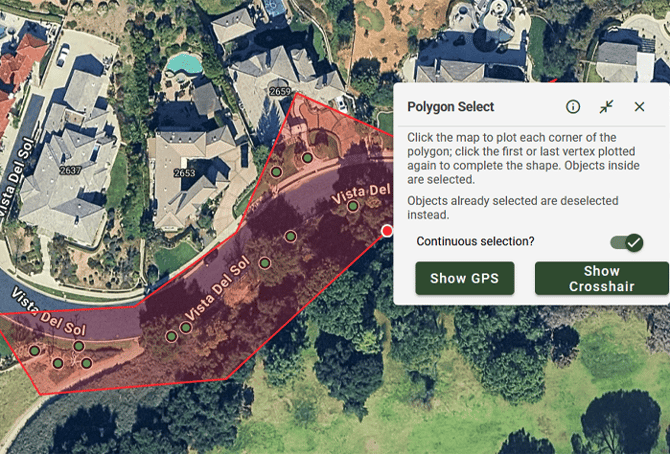
- Click on the Map View to create your starting point
- Continue to click across your map to draw a shape
- Double-click to create your endpoint, and a selection will be applied to the data points within your shape
Shape Select: Rectangular Select and Radial Select
Select Data Points within a specific area by creating a predefined shape.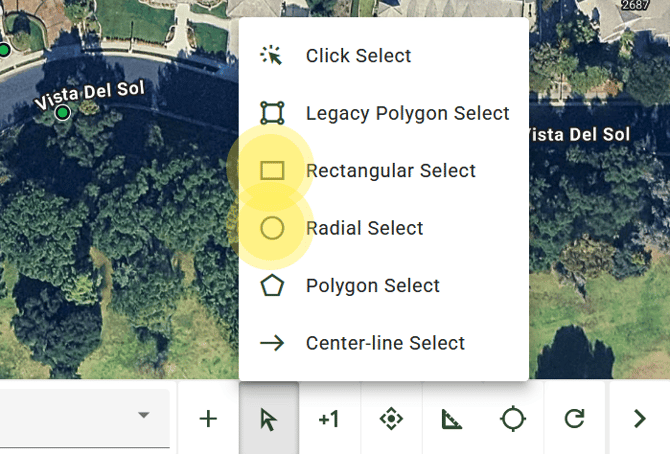
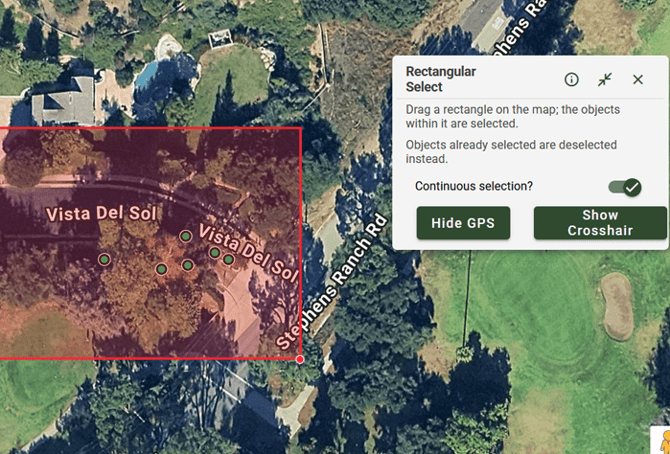
Rectangular Select:
Allows you to select data points within a rectangular area. Click and drag to create a rectangle around the data points you want to include in your selection.
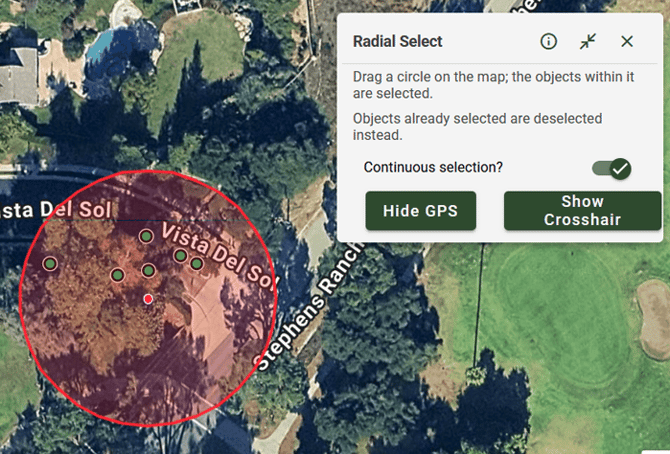
Radial Select:
Allows you to select datapoints within a circular area. Set the center point and adjust the radius to control how large the selection area is.
- Click the Object Selection button (mouse-cursor icon) in the Map Tools bar.
- Choose either Rectangular Select or Radial Select.
- Click on the map to set your starting point.
- Move your cursor to adjust the size of the selection area.
- Click again on your Map View to select the objects within the area.

Center-Line Select:
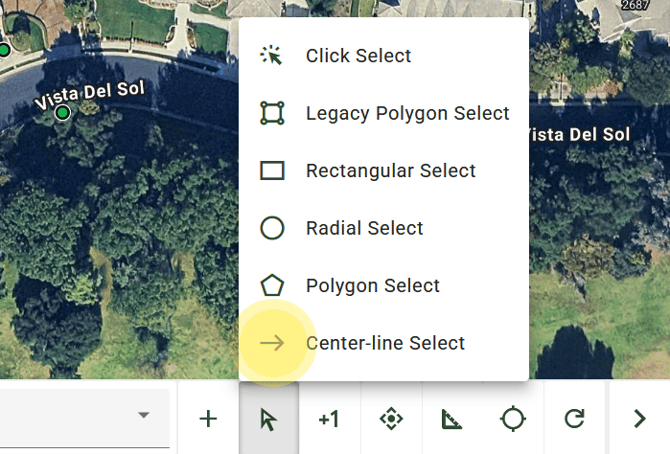
Allows you to select data points along a center line. Draw a line through the desired area, and data points positioned along the line are included in the selection.
- Click on your Object Selection Button, represented by the mouse-cursor icon and located in your Map Tools bar.
- Select the Center-Line Select: Populates a line polygon shape on your map view.
- Position your crosshair and click the Accept button to place your Polygon.
- Click and drag your red Polygon Shape over the Data Points you wish to capture. Adjust the polygon boundaries as needed.
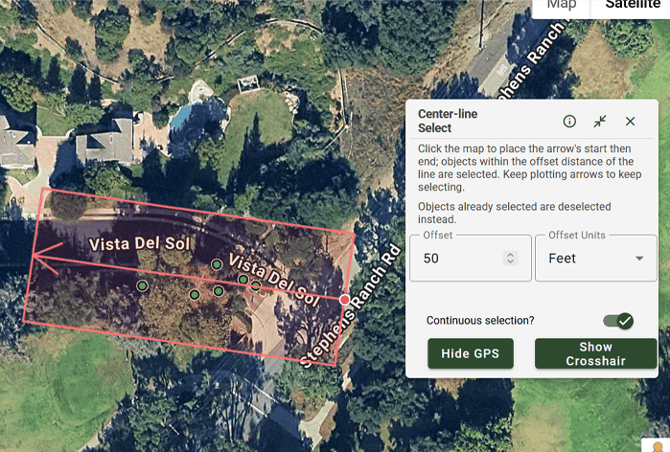
- Click again on your Map View to select the objects within the area.
ArborPro Tip: Continuous Selection will automatically be toggled on in your Polygon Select window
Arborist Tip: You can also use the Polygon Selection Tool to deselect by overlaying a new polygon over your selected points.