The Reports pane allows you to generate, customize, and export CSV and PDF reports based on your defined datasets. You can use the Filter Tool, Groups, or Map Selection to choose the data you want included.
Selecting CSV Builder quickly exports your selected data into a CSV spreadsheet for raw data analysis.
Selecting CSV Builder quickly exports your selected data into a CSV spreadsheet for raw data analysis.
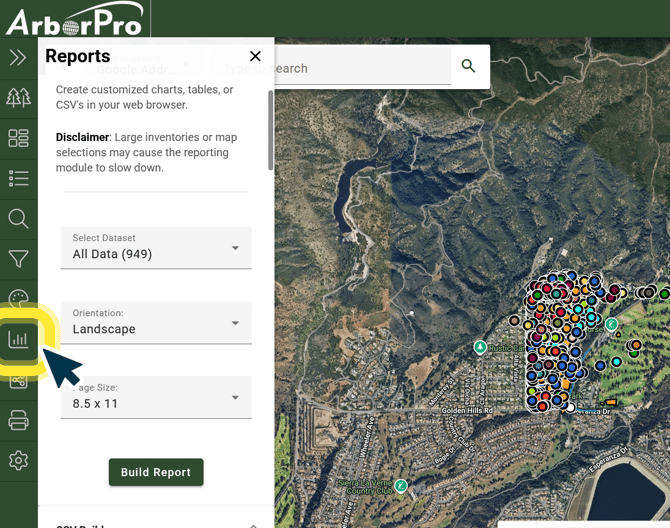
Step 1.) Open the Reports Pane
Navigate to the Reports Pane, represented by the bar-graph icon, from your Data Analysis toolbar.
Step 2. ) Select CSV Builder
Scroll to the bottom of your Reports Pane and click “CSV Builder” to open the drowndown menu.
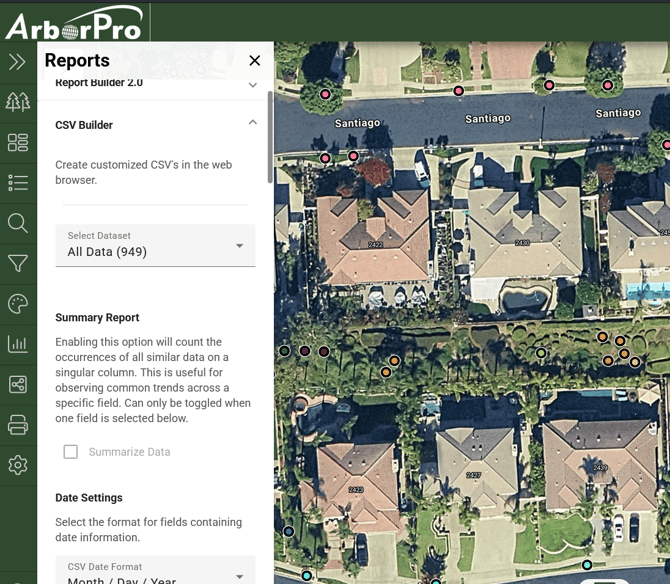
Step 3. ) Define Your Dataset’s Report
Choose your Dataset, Date Settings, and which data fields you want included in your export. Only selected fields will appear in the CSV file.
AborPro Tip: Organize the order of the field columns that appear in your spreadsheet by clicking and dragging their position.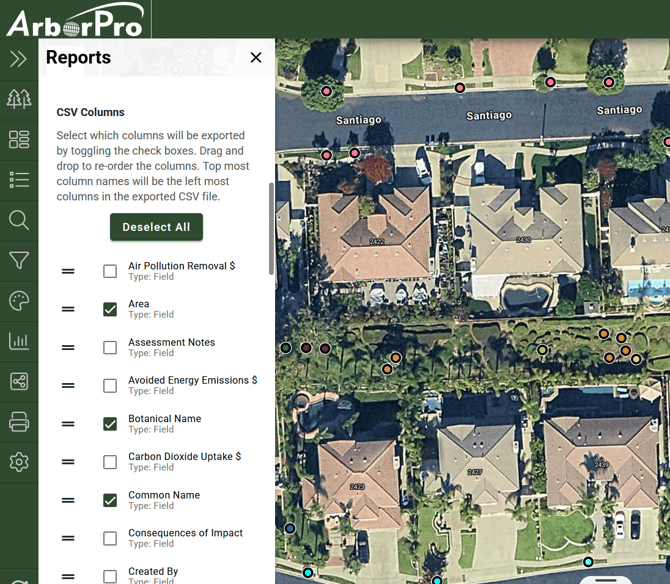
Step 4.) Export
Make any last adjustments before exporting.
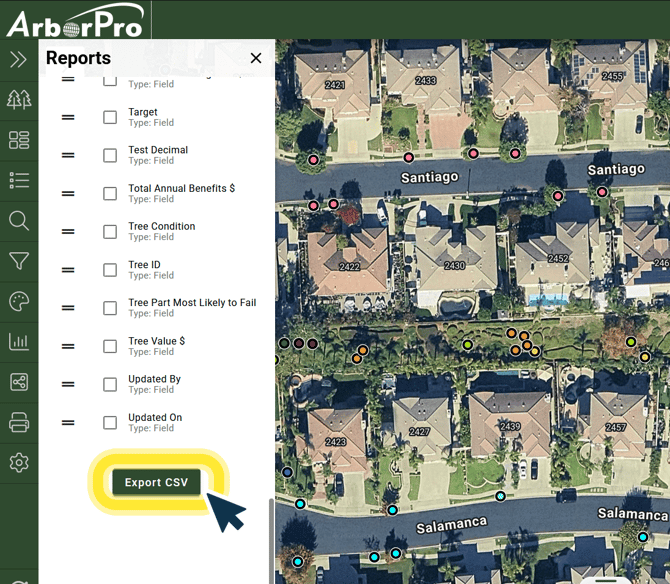
Click the green “Export" button at the bottom of the pane. The file will download as a .CSV file to your device.