
The Groups Pane allows you to quickly navigate to predefined collections of trees or data records based on shared characteristics. Groups help organize specific sets of data without needing to reapply filters or selections to locate them.
Using the Groups Pane:
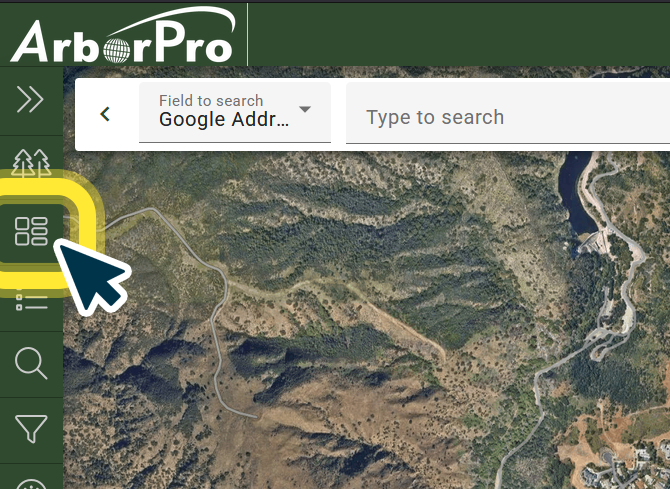
Step 1.) Click Groups
Navigate to the Groups Pane button, represented by a tile icon, within your Data Analysis Toolbar.
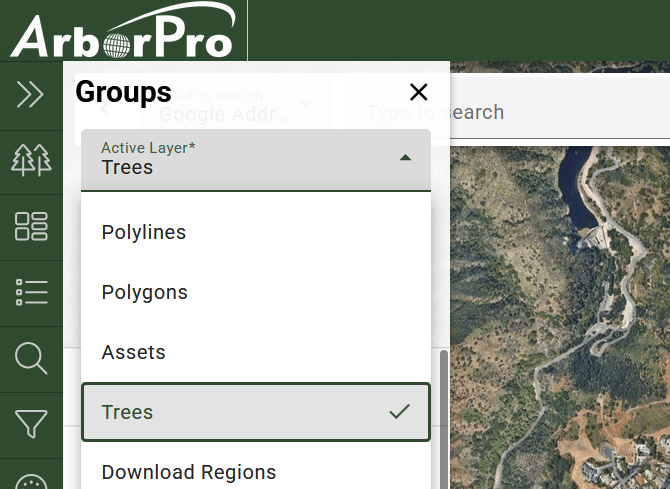
Step 2.) Choose Your Active Layer and Field
Use the Active Layer and Field dropdown menus to make a selection. Each selection combination will populate different available field grouping options.
Step 3.) Click a Field Group Option
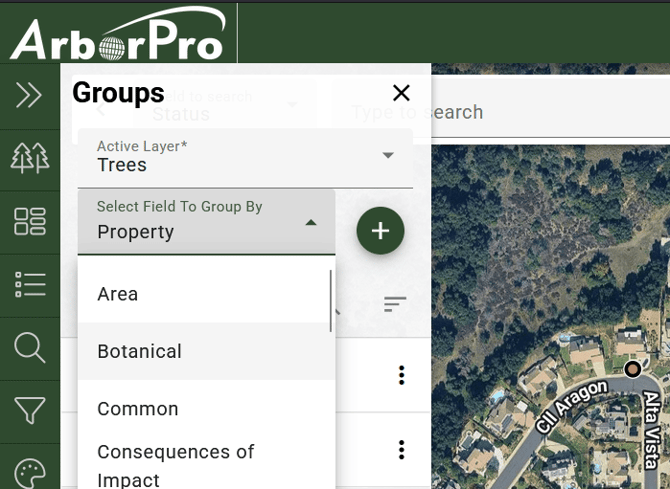
Selecting a field group option will automatically highlight the corresponding data points on your map. ArborPro Tip: To deselect objects or data points, click on the Reset Highlights and Rulers’ button on your Map Tools Bar.
Groups Pane:
Clicking the three dots next to a field group option will open its menu.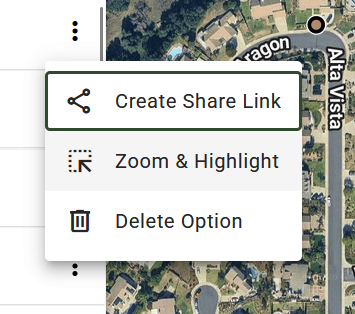
- Create Share Link: You will be prompted to choose between a static or dynamic map share. Includes only the points, lines, or polygons present at the time it is created.

A.) Static Map Share: Includes only the points, lines, or polygons present at the time it is created.
B.) A Dynamic Map Share: Live map that automatically updates and reflects any additions or removals of points, lines, or polygons as the inventory changes.
- Zoom & Highlight: Centers the map view on selected points and highlights them

- Delete Option: Removes the selected option.