
-
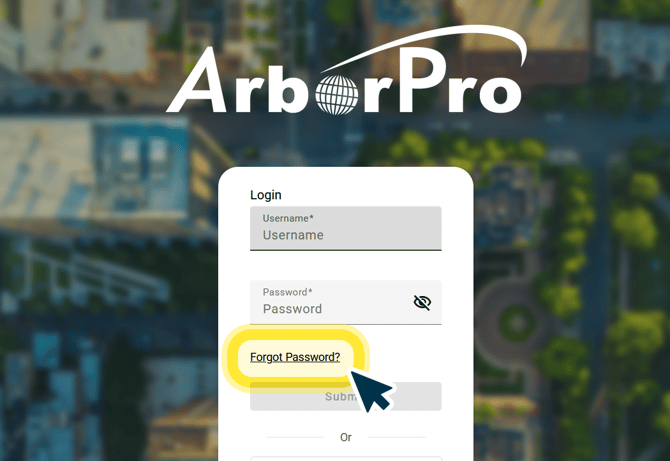
From the Login Page
At the main ArborPro login screen, you can select the ‘Forgot Password?’ link to have an automated email sent to your email address. This email will let you reset your password. If you experience any further issues, please reach out to our support staff at: Help@ArborProUSA.com
-
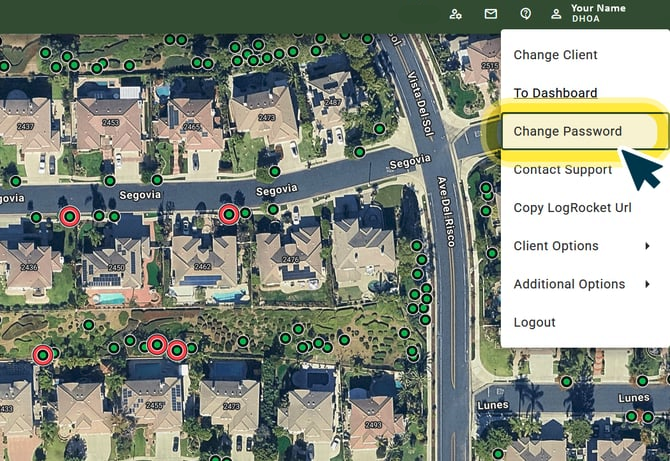
From Your Software
You can also reset your account’s password in the software after logging in by clicking your account name, located in the top right corner, and then selecting “Change Password” from the drop-down menu.
-
As a Database Admin
Step 1.) Click the 'Open Client Management Tools' button, located in your account tools in the top right corner of your screen.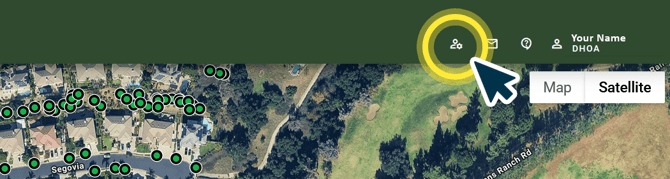
Step 2.) Select the "User Management" option from your Management Tool Menu represented by the Three Stacked Lines icon in the top left corner of your screen.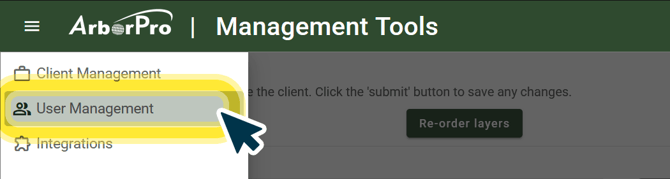
Step 3.) Search or scroll to the user whose password you wish to reset, and click the Pencil Icon beside their name.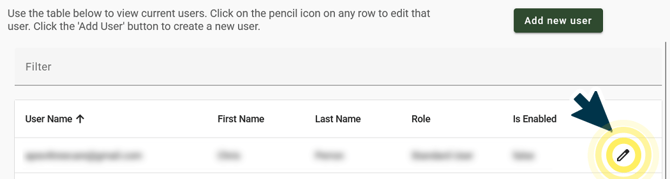
Step 4.) Click "Reset Password".
A password reset email will be sent automatically. If you do not see it right away, please be sure to check your spam folder.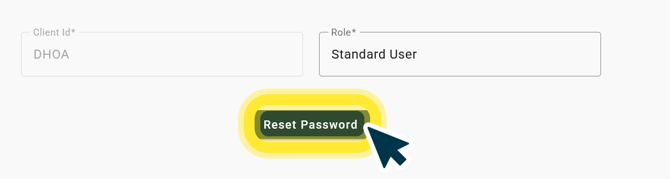
Arborist Tip: Unable to reset your password with the provided steps? Please reach out to your database admin or to Help@ArborProUSA.com for assistance.