
Step 1.) Create a Mass Selection:
ArborPro Tip: You can perform a mass selection by using the Polygon selection tool, Click Selection tool or Search Tool. Your Tree Dashboard count will update to reflect the number of points selected vs. the number of total Active Points within the software.
Step 2.) Activate Move Tool:
Click on the Move Tool button represented by the diamond icon in your Map Tools Bar.

Step 3.) Enable Mass Move:
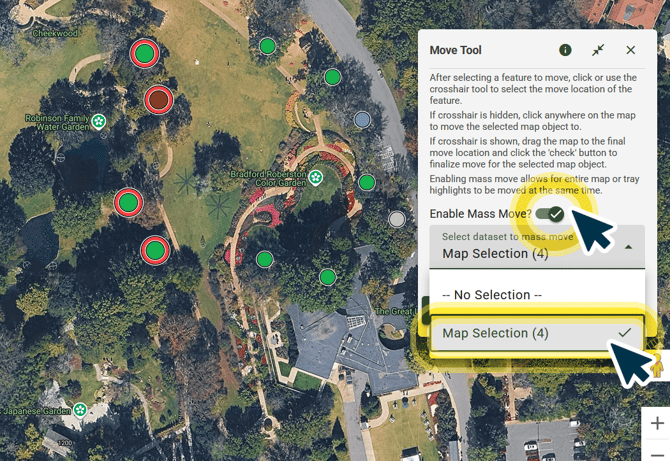
Toggle on the “Enable Mass Move” option in your Move Tool dialogue box. Proceed to click “Select dataset to mass move” and select an option from the drop-down menu.
Step 4.) Reassign Points Location:
Click any of your highlighted data points, lines, or polygons to begin moving. A yellow outline will appear around your cursor to preview the relocation of the Data Point. All other data points, lines, and polygon previews will follow your cursor as green outlines.
ArborPro Tip: For better point accuracy, you can enable Show Crosshair from the Move Tool dialogue box, or if you are on a desktop, simply click on your desired location.
ArborPro Tip: Users cannot undo mass moves. If you make an error, you can mass move again or reach out to help@arborprousa.com for support.