Select a Point> More Options> Copy Data> Paste> Save
Step 1.) Select a Point:
Click on the Object you wish to copy to open its Details Pane.
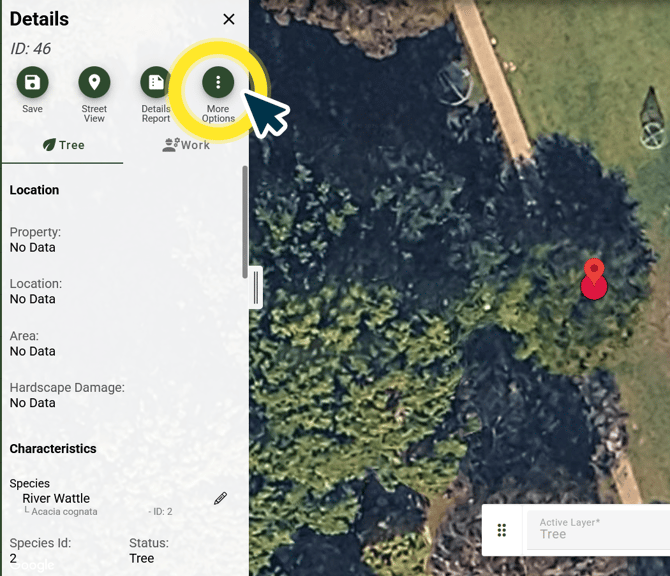
Step 2.) Click More Options:
Click More Options, represented by the Three Dots Icon from the Details Pane.
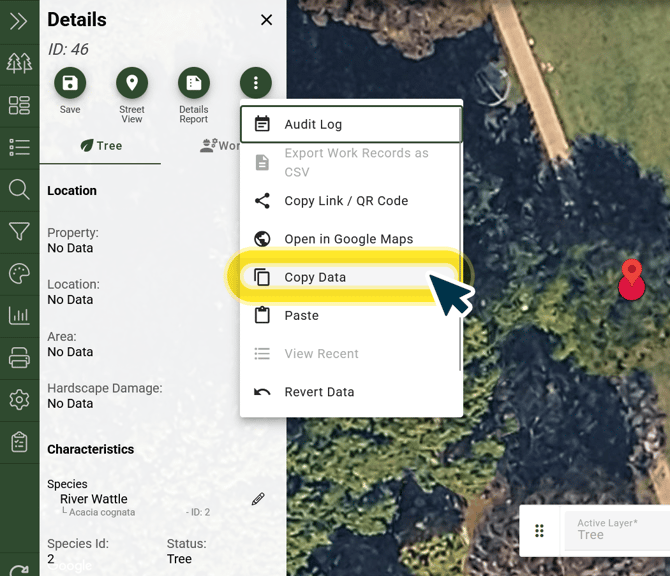
Step 3.) Copy Data:
Select Copy Data from the More Options menu.
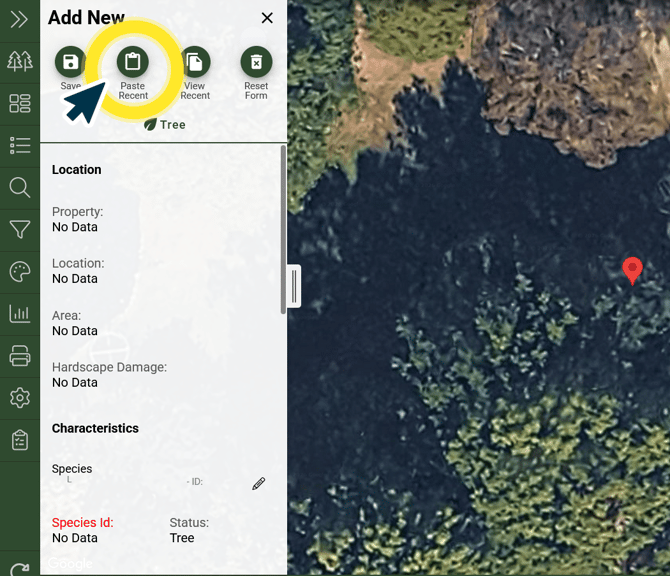
Step 4.) Paste:
Paste your copied data into an existing point OR a new point:
a.) Paste into a New Data Point:
After creating a new Data Point, click the Paste Recent button from your Details Pane.
b.) Paste into an existing Data Point:
Click the Data Point you wish to update with your copied details. Click More Options, represented by the Three Dots Icon from the Details Pane and select Paste > Continue and Paste.
Arborist Tip: You can also copy and paste using keyboard shortcuts like CTRL + C and CTRL + V.
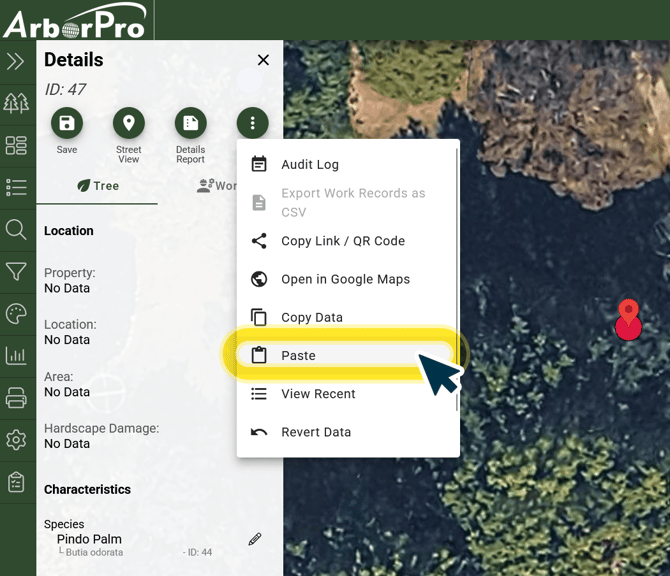
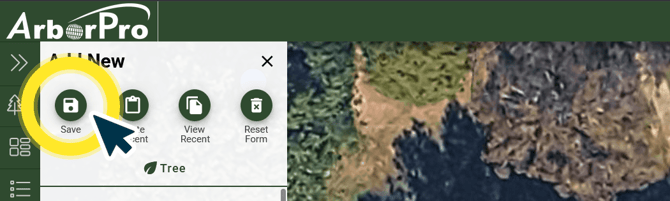
Step 5.) Save: Click the save button located at the top of your details pane.
Arborist Tip: To undo detail changes to a Tree, click ‘Revert Data’ option from the More Options button in the Details Pane.