Step 1.) Add Point:
Click on the Add Point button represented by the + icon in your Map Tools Bar. ArborPro Tip: Your Active Layer from the Map Tools Bar will indicate what object will be created.

Step 2.) Assign Location:
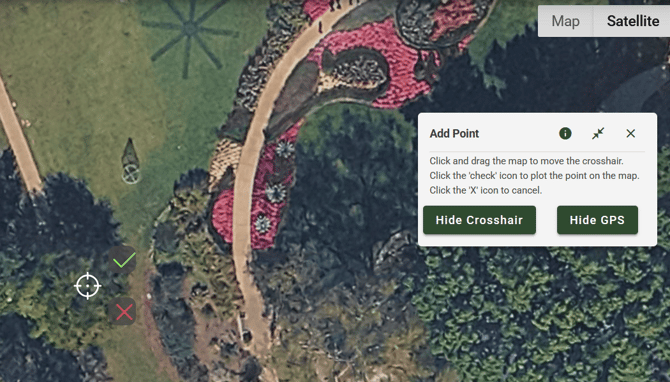
Click on the location where you’d like to place your data point.
ArborPro Tip: For better point accuracy, you can enable Show Crosshair before adding a tree from the Add Point dialogue box. Outside of crosshair mode, you can simply click on your desired location.
Step 3.) Assign Details to your Point:
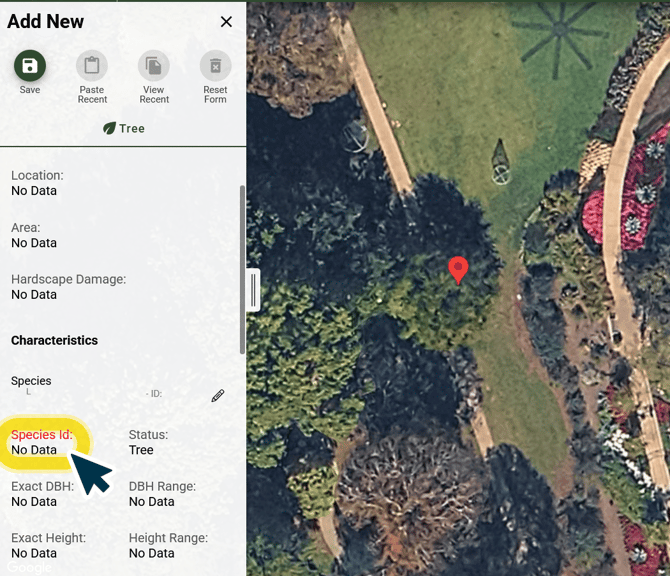
A marker will appear at your selection, and a details pane will open for your data collection. Enter your point’s data into the data collection fields.
ArborPro Tip: Fields highlighted in red are required to fill before saving.
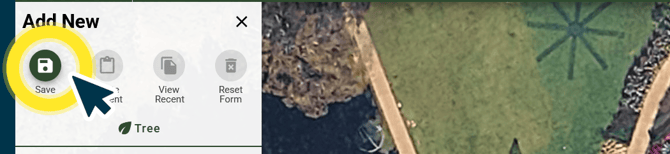
Step 4.) Save:
Click the save button located at the top of your details pane.